Event Settings (Scoped Interfaces)
Overview
This event exposes four dedicated settings interfaces in the sidebar. Other legacy/general tabs are not enabled here, so this documentation focuses ONLY on the active sections:
- Checkout Reservation Timer
- Payment Settings
- Register Success Page
- Guest Approval Logic
If more tabs are enabled later (e.g., Forms, Branding, Access) re‑introduce their documentation blocks then.
User Story & Walkthrough Video
Download / Open Directly: Download the MP4
Interface Screens (Placeholders)
Replace each placeholder with a real screenshot using the same filename under /images.
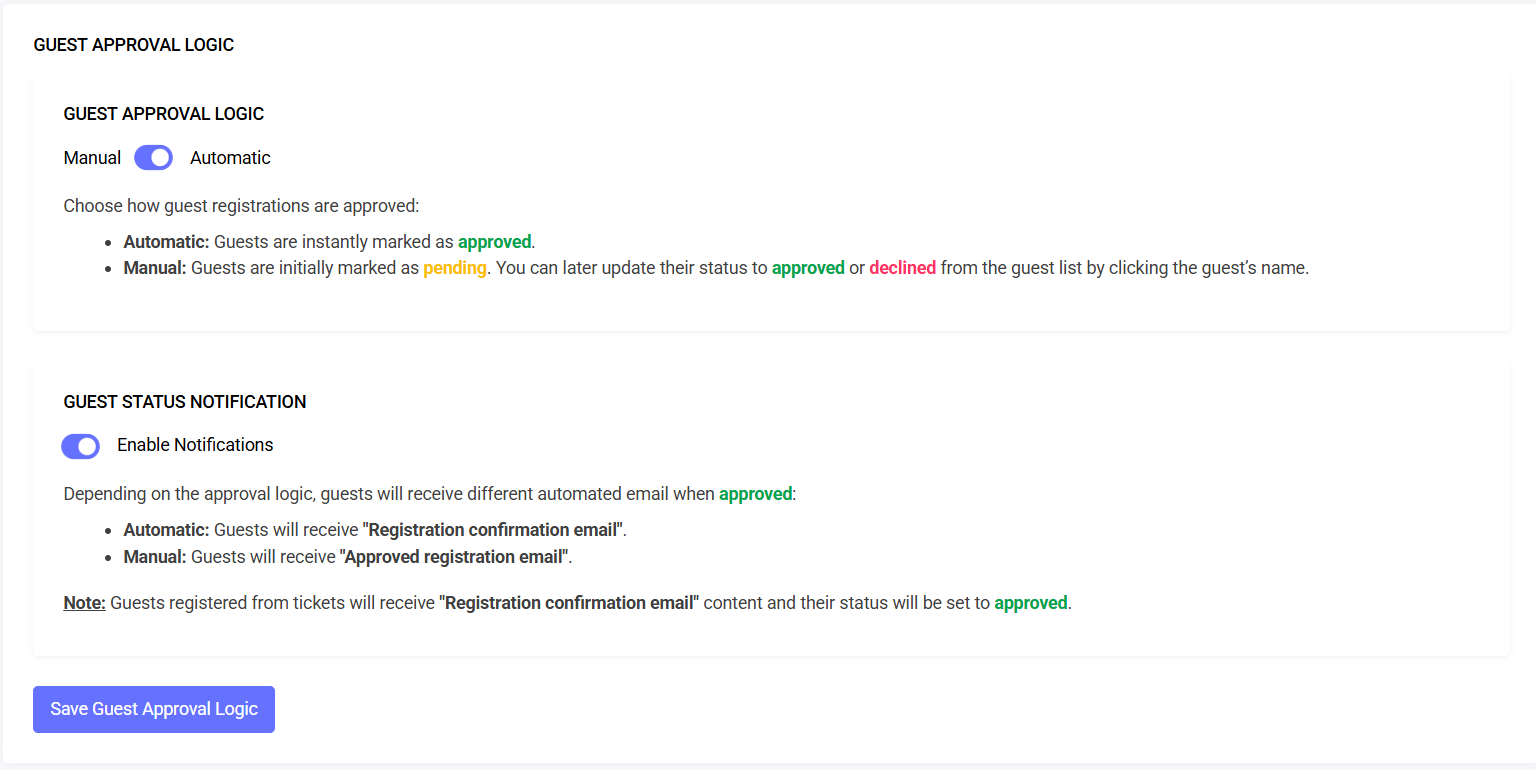
- Guest Approval Logic – Manual vs Automatic, notifications
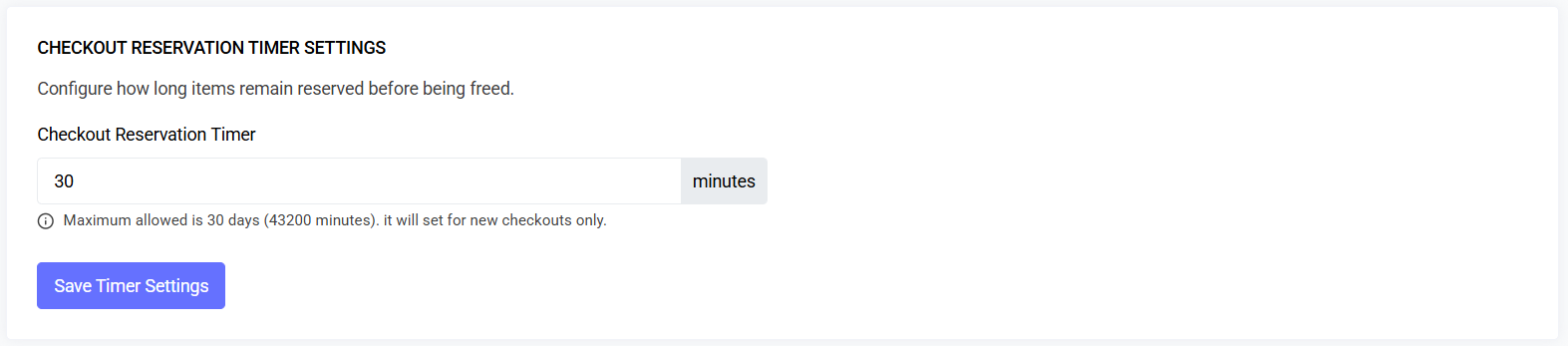
- Checkout Reservation Timer – Control cart hold duration & expiry UX
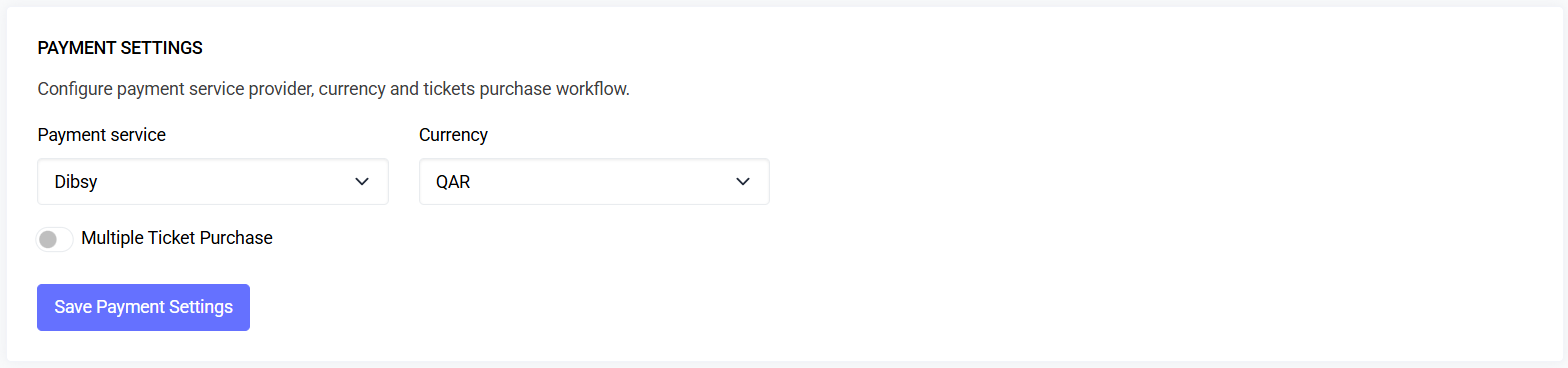
- Payment Settings – Configure provider and currency
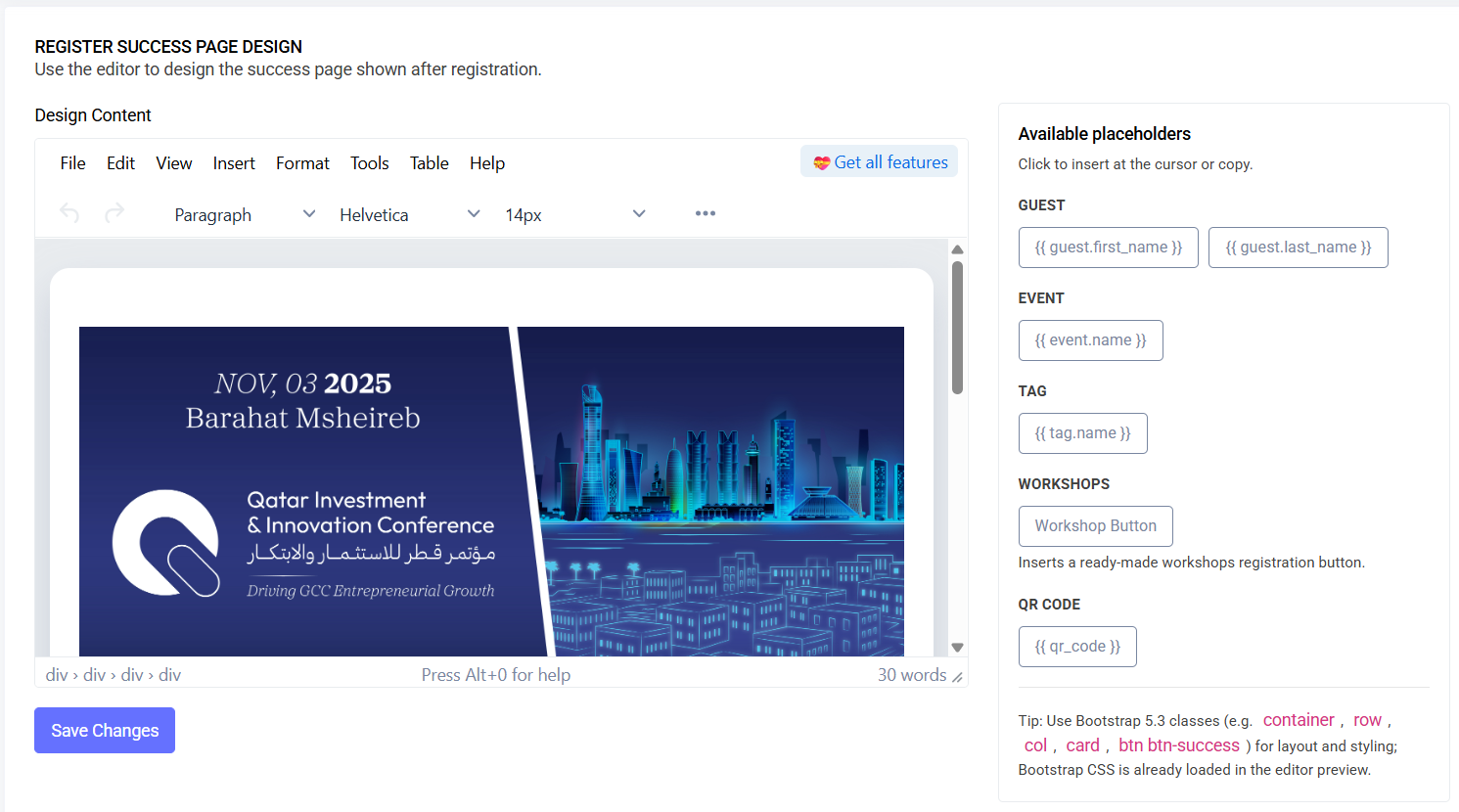
- Register Success Page – WYSIWYG content for post‑registration page
Quick Capabilities Summary
- Temporary inventory holds during checkout
- Payment provider & currency mapping; multiple ticket purchase option
- Custom success page content and placeholders
- Guest approval mode and notification emails
1) Checkout Reservation Timer
Controls how long selected tickets (or registration slots) remain reserved while a user completes checkout.
Fields
- Checkout Reservation Timer (minutes): required; min 1, max 43200 (30 days). Applies to new checkouts only.
Behavior
- Affects only checkouts initiated after saving the setting.
- When the timer elapses, held items are freed automatically by the backend process.
Recommended Default
- 10–15 minutes depending on demand and inventory contention.
2) Payment Settings
Configures how payments are processed for this event (event‑scoped override).
Fields
- Payment service: Required. One of
skipcash,dibsy. - Currency: Required. Populated based on selected provider.
- Multiple Ticket Purchase: Toggle to allow buying multiple tickets in a single order.
- Provider Secrets:
- SkipCash:
key_secret,client_id,key_id(required if service=skipcash) - Dibsy:
secret_key(required if service=dibsy)
- SkipCash:
Behavior
- Currency options are dynamically filtered by the chosen provider.
- Secrets are stored securely; values may be masked in the UI.
- Save updates take effect immediately for new checkouts.
Security
- Don’t share or paste secrets in unsecured channels.
- Rotate secrets if exposed and re‑save here.
3) Register Success Page
Custom content shown after successful registration or completed purchase.
Fields
- Design Content (HTML): Edited via the built‑in WYSIWYG. Bootstrap styling is available in preview.
- Available placeholders (insertable from the sidebar):
{{ guest.first_name }},{{ guest.last_name }}{{ event.name }}{{ tag.name }}{{ workshop_link }}(inserts a Workshops registration button when available)
Behavior
- Content renders after the backend marks the registration/payment successful.
- Keep content concise and provide a clear next step (CTA button within your HTML).
Best Practices
- Use Bootstrap classes for clean layout (container, row, col, card, btn).
- Avoid overly long content that pushes key actions below the fold.
4) Guest Approval Logic
Choose how guest registrations are approved and whether to send status emails.
Fields
- Guest Approval: Manual vs Automatic (switch). Manual sets new guests to pending; Automatic sets them to approved.
- Guest Status Notification: Toggle to send the appropriate email when a guest becomes approved.
Behavior
- Automatic: Guests receive “Registration confirmation email”.
- Manual: After you approve a guest, they receive “Approved registration email”.
- Guests registered from tickets are set to approved and receive the confirmation email content.
Permissions
| Interface | Permission (as implemented) | Scope |
|---|---|---|
| Checkout Reservation Timer | event-setting.checkoutReservationTimer | Edit timer (minutes) |
| Payment Settings | event-setting.paymentSettings | Provider, currency, multi‑ticket |
| Register Success Page | event-setting.registerSuccessPage | Success page content |
| Guest Approval Logic | event-setting.guestApprovalLogic | Approval mode & notifications |
(Read‑only listing may be gated elsewhere if implemented.)
Data Model (Focused Extract)
event_settings(event_id, key, value_json)- Checkout Timer:
checkout_reservation_timer - Payments:
payment_service,currency,multiple_ticket_purchase,payment_secrets - Success Page:
register_success_page - Guest Logic:
guest_approval,guest_status_notification
- Checkout Timer:
- audit_logs(... section, before_json, after_json ...)
Validation (Representative)
checkout_reservation_timer: required|integer|min:1|max:43200payment_service: required|in:skipcash,dibsycurrency: required|in:QAR (per provider mapping)multiple_ticket_purchase: required|booleanskipcash.key_secret,skipcash.client_id,skipcash.key_id: required_if:payment_service,skipcash|stringdibsy.secret_key: required_if:payment_service,dibsy|stringregister_success_page: required|stringguest_approval: required|in:automatic,manualguest_status_notification: required|boolean
Troubleshooting
| Issue | Likely Cause | Fix |
|---|---|---|
| Timer value rejected | Below 1 or above 43200 | Enter a number between 1 and 43200 minutes |
| Currency list empty | Provider not selected | Pick SkipCash or Dibsy to populate currency |
| Secrets validation fails | Missing required provider fields | Fill in the required fields for the chosen provider |
| Success page looks unstyled | Missing Bootstrap classes | Use Bootstrap 5 classes in your HTML content |
| No approval emails sent | Notification toggle off | Enable Guest Status Notification |
Pre‑Launch Mini Checklist
- Checkout reservation minutes set and saved
- Payment service chosen; currency set; secrets saved
- Multiple ticket purchase toggle set as intended
- Success page content reviewed with placeholders
- Guest approval logic chosen; notifications toggle set
Last updated: 2025-10-09 (scoped version)