Meetings
Quick Links
📌 Why Meetings?
Structured 1:1 scheduling that respects event dates, configured hours, and slot lengths—preventing clashes and keeping confirmations in one inbox.
Plan and manage 1:1 meetings during an event. Exhibitors set their available hours; visitors request a slot. The system validates slots, prevents overlaps, and keeps everything scoped to the event dates.
Interface Preview
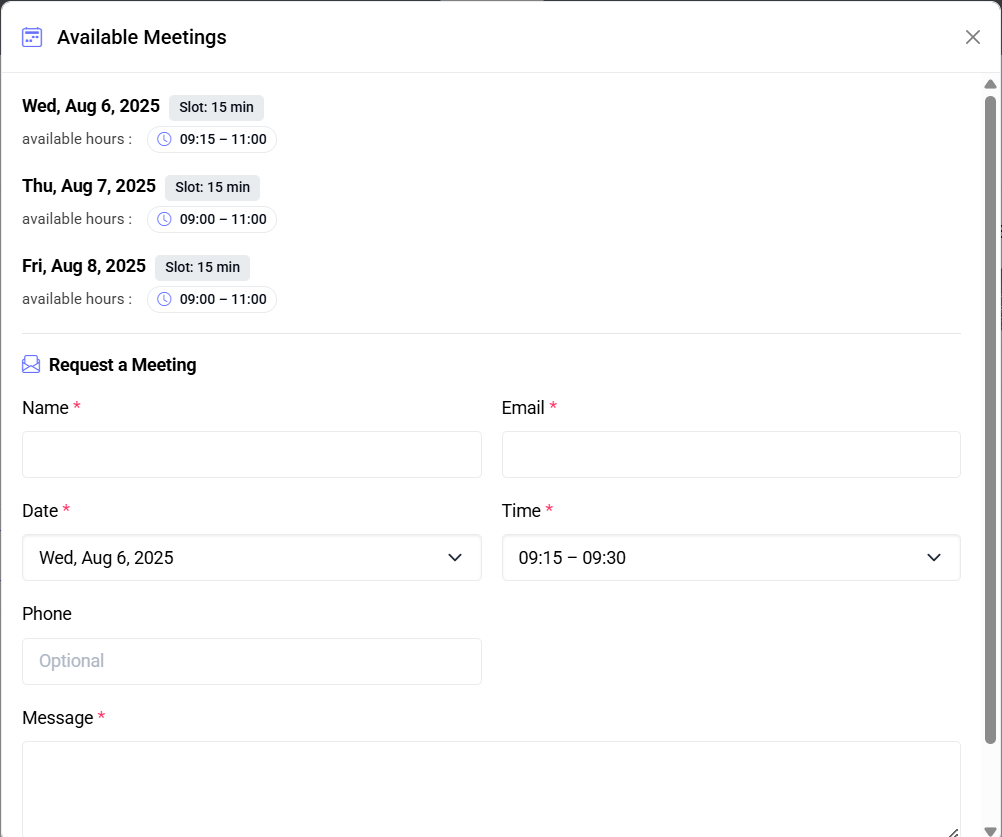
Quick Start
- Define availability slots
- Send meeting requests
- Track confirmations
Who this is for
- Exhibitors: configure your available dates/times and slot length per day
- Staff/Admin: review incoming meeting requests for an exhibitor
- Visitors: request a meeting from an exhibitor’s public profile
Before You Start
- User must have Exhibitor access for the event and permission to manage meetings
- Event must have valid start and end dates; availability is limited to this window
Meeting Availability (Exhibitor)
Path: Event > Exhibitor Profile > Meetings > Availability
Capabilities
- Edit single or multiple dates (bulk edit)
- Mark any date as Closed
- Add multiple time ranges per date (e.g., 09:00–12:00 and 14:00–19:00)
- Choose slot length per date: 15, 30, or 60 minutes
Interface
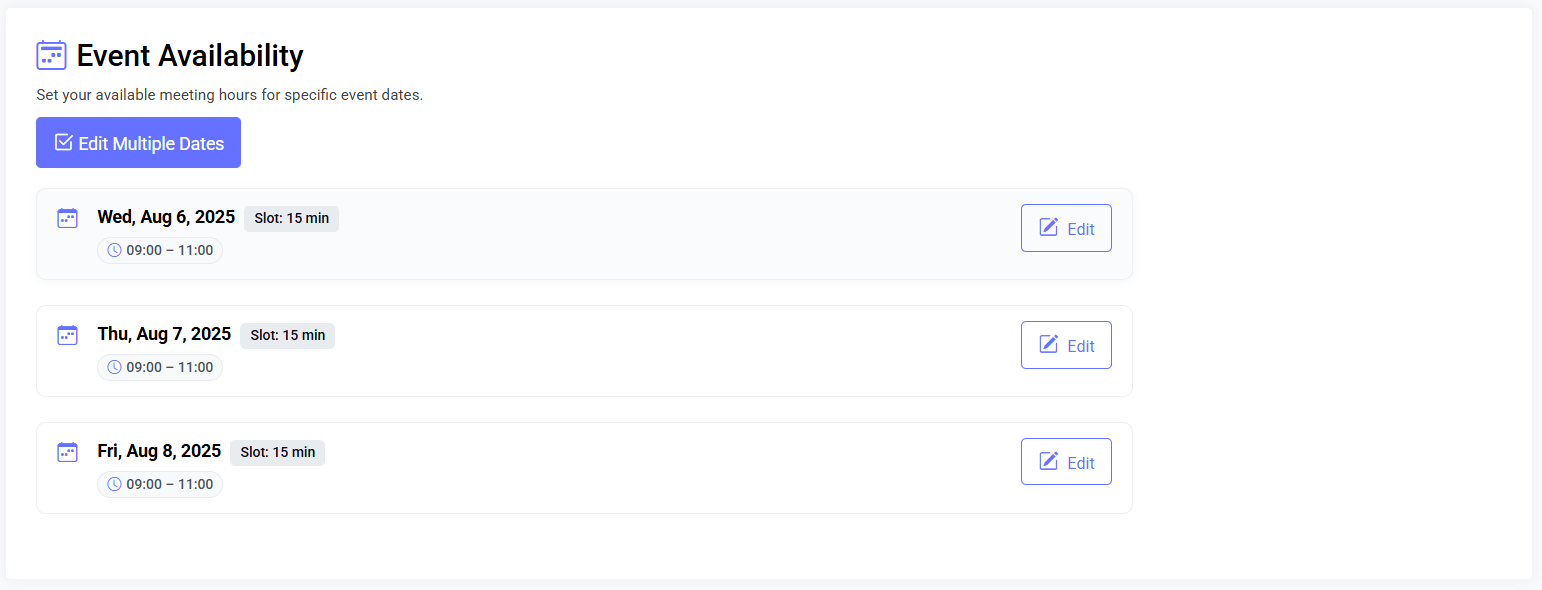
- List of event dates with availability & slot length badge
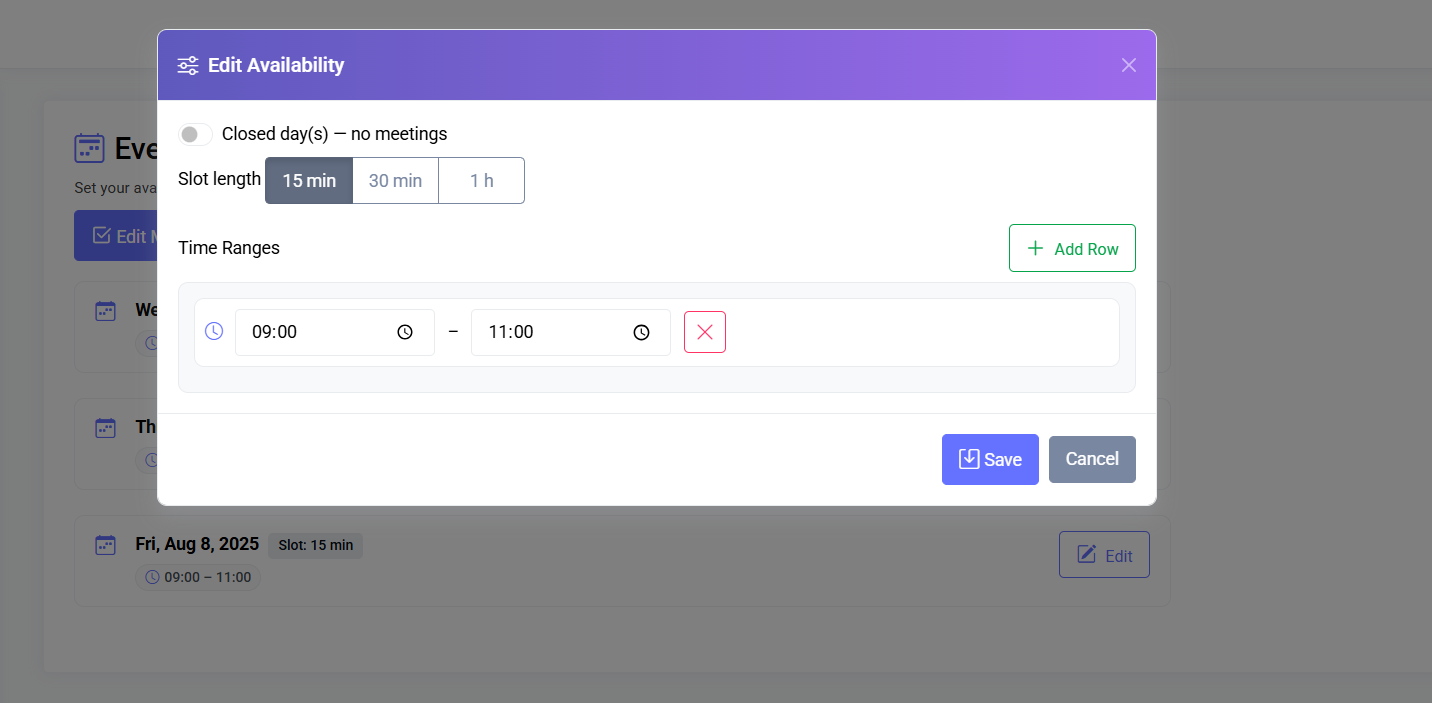
- Edit button → “Edit Availability” modal:
- Closed toggle to block all meetings
- Slot length selector (15/30/60)
- Time ranges editor: add/remove rows
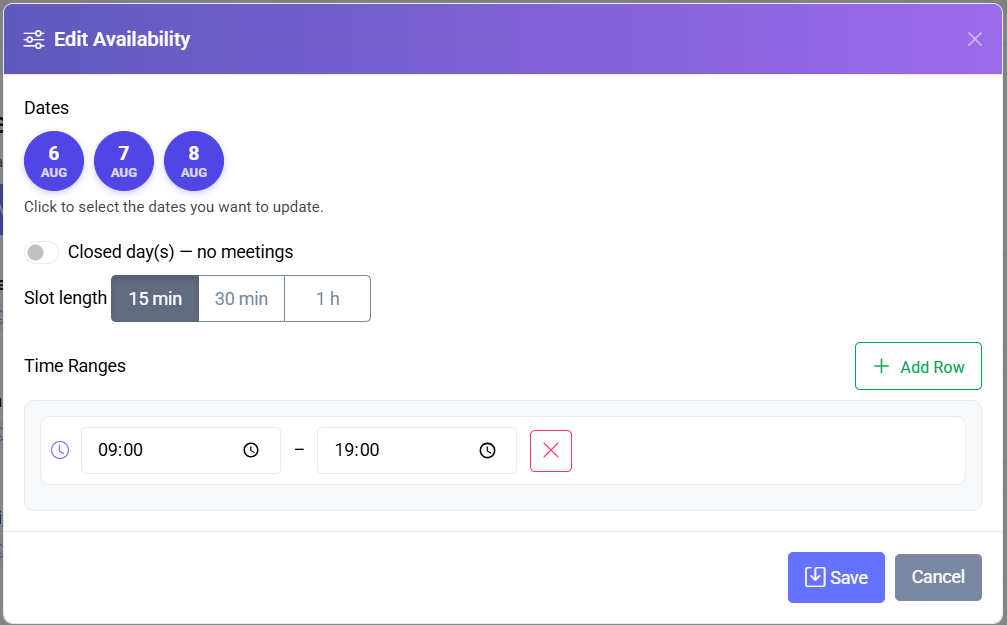
- Bulk edit: select multiple dates via day chips
Screenshots
- Availability list:
- Edit modal (single):
- Edit modal (bulk):
Video: Managing availability (1 min) → /videos/meetings-availability.mp4
Single-Date Edit
- Click Edit next to a date
- To open day: toggle Closed OFF, add ≥1 time range
- To close day: toggle Closed ON
- Pick slot length (default 30 min)
- Save
Bulk Edit
- Click Edit Multiple Dates
- Select dates via day chips
- Set Closed ON/OFF and add time ranges
- Pick slot length (preselected if uniform; can be changed)
- Save to apply to all selected dates
Input Rules & Validation
| Field | Rules |
|---|---|
| Date(s) | Single date YYYY-MM-DD or array required |
| Closed | If ON, no time ranges required |
| Time ranges | ≥1 row required; Start/End in HH:MM; End > Start |
| Slot length | Must be 15, 30, or 60 min; per date; bulk edit applies same slot to all selected |
Saved Data:
- Availability per date (list of time ranges)
- Slot length per date (15/30/60)
Common Messages:
- Success: “Availability updated!”
- Errors:
- “Add at least one time range or mark the day(s) as closed.”
- “End time must be after start time.”
Meeting Requests (Inbox)
Path: Event > Exhibitor Profile > Meetings > Requests
Interface
- Paginated list (newest first) of requests
- Columns: Requester name/email/phone, requested date/time, message snippet, submission timestamp
Screenshot: 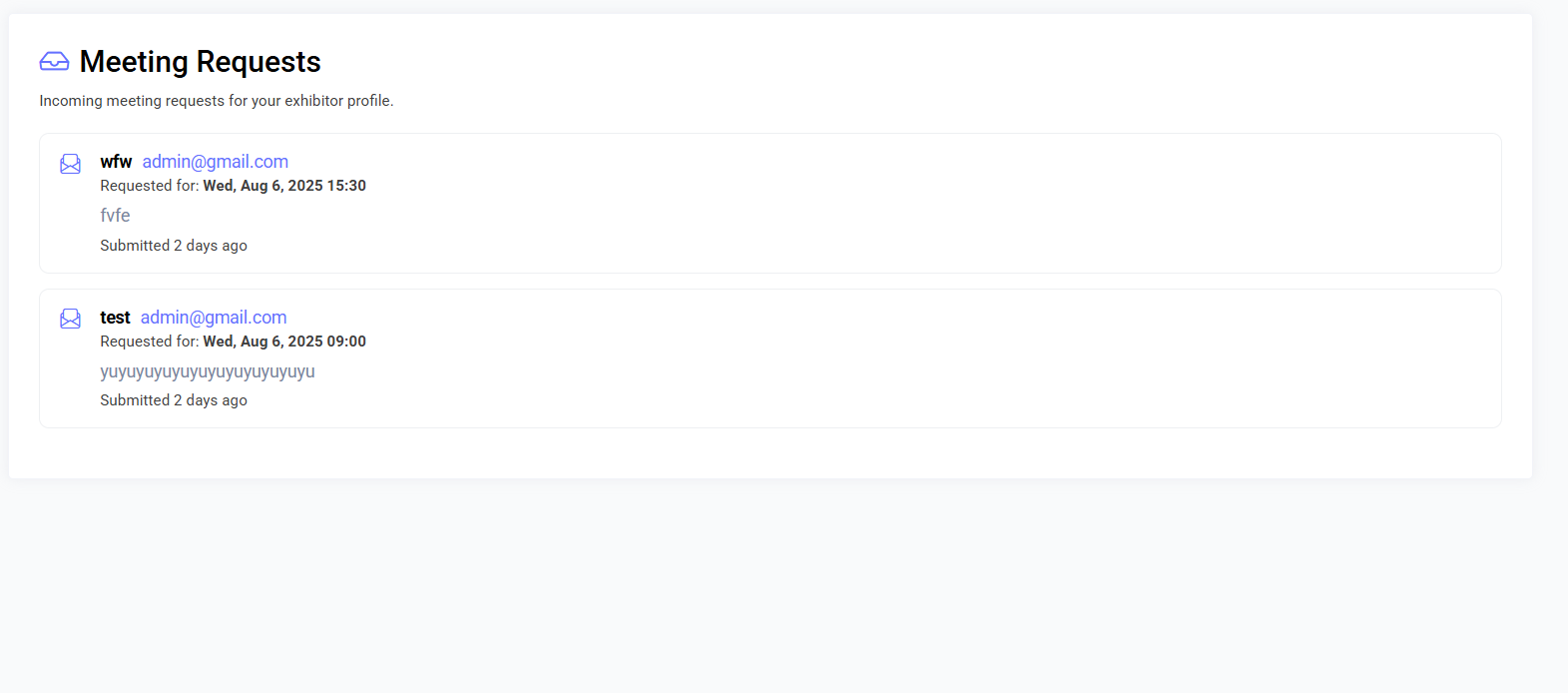
Video: Viewing requests (30s) → /videos/meetings-requests.mp4
Visitor Request Flow
- Visitor selects date/time slot from exhibitor profile
- System validates:
- Date/time within event window
- Date must be open with available time ranges
- Time aligns with slot length (15/30/60)
- Slot not already booked
Request Form Fields
- Date and time (YYYY-MM-DD HH:MM) — required
- Name — required, max 255 chars
- Email — required, valid email
- Phone — optional, max 40 chars
- Message — required
Validation & Booking Logic
- Event window: must fall within event start/end
- Availability: day open, configured ranges
- Slot matching: aligns with slot length
- Double booking: prevented
- Success → request saved, success message
- Failure → clear error (e.g., “Selected time slot is not available.”)
Tips
- Keep ranges tight to avoid excess slots
- Use bulk edit to copy working hours across dates
- Prefer 30-minute slots for standard meetings
Troubleshooting
| Issue | Resolution |
|---|---|
| Can’t save availability | Ensure Closed is ON or add ≥1 time range with End > Start |
| Bulk edit didn’t change slot length | Confirm selected dates (active chips) and slot button highlighted |
| Visitors report time unavailable | Verify time aligns with slot length and within day’s ranges |
| Requests not visible | Confirm correct event & exhibitor profile; check meeting permissions |
Last updated: 2025-11-03