Orders
Quick Links
📌 Why Orders?
Financial source of truth linking tickets, guests, and payments. Clear statuses power automations, refunds, and support without digging through multiple systems.
Orders represent transactional records for one or more tickets (and optionally add-ons) purchased or issued for an event. They connect purchasers, payment attempts, tickets, and resulting guests.
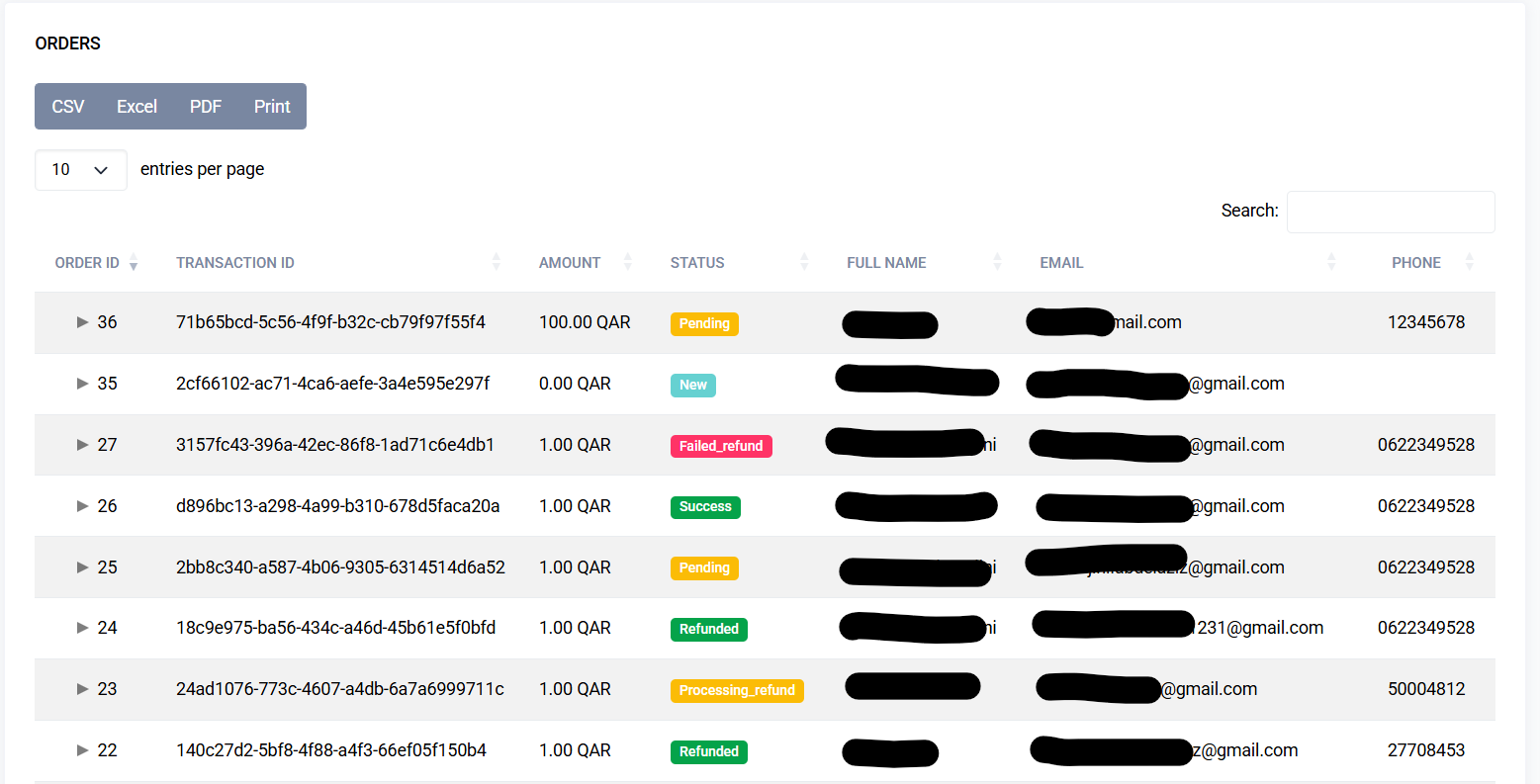
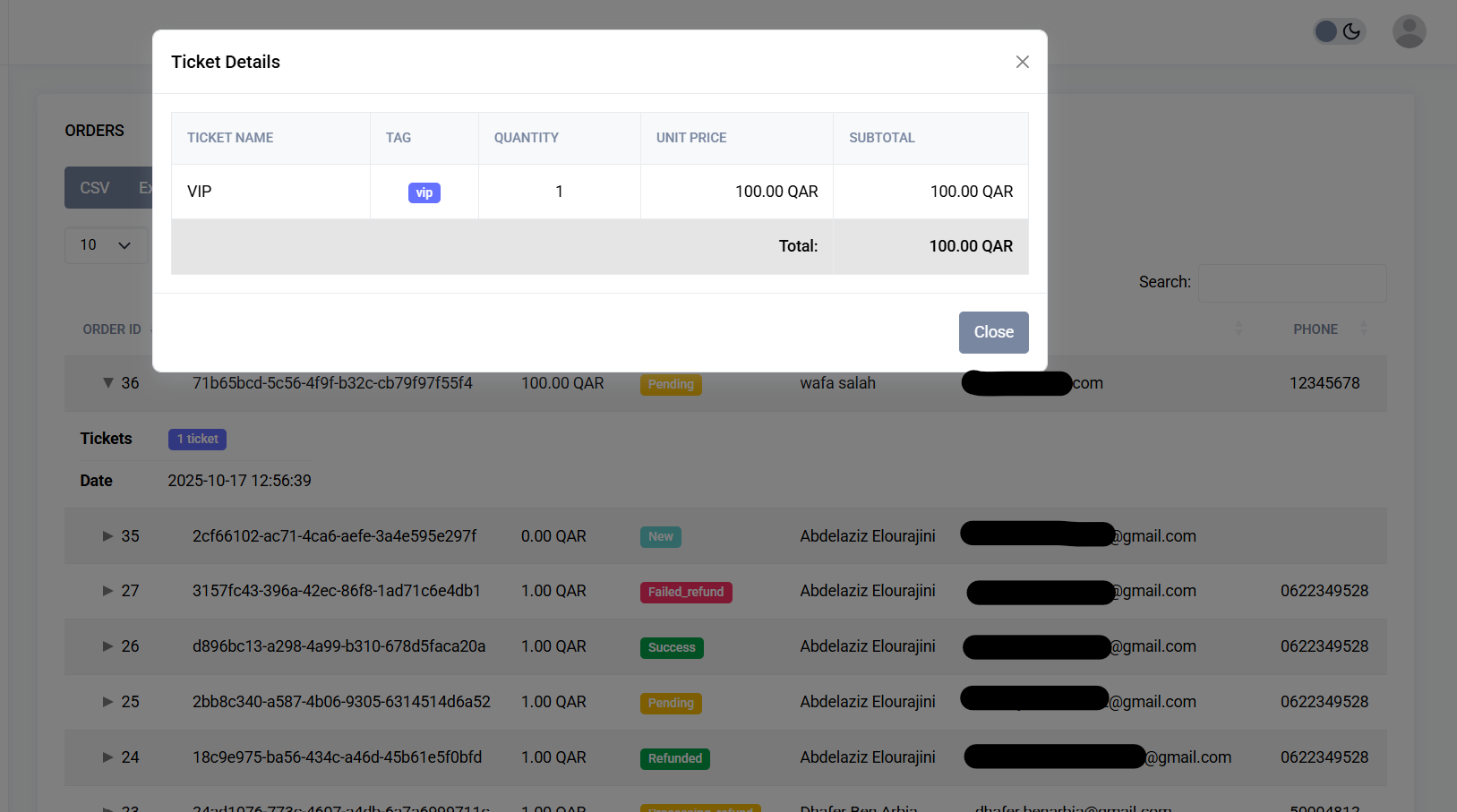
Interface Preview
Quick Start
- Go to Event > Orders
- Filter by status
- Open a row to see full details
Stats Cards (Top of Page)
Cards summarize transaction activity for the current event:
- Total Orders: Count of transactions with combined total per currency
- Success: Successful transactions
- Pending: Awaiting completion or gateway confirmation
- Failed: Declined, canceled, or errored transactions
- Refunded: Fully or partially refunded transactions
- Processing Refund: Refunds initiated but not finalized
- Failed Refund: Refund attempts that failed
- New: Recently created orders not yet processed
Notes:
- Scope: Transactions linked to the current event
- Multi-currency: Total amount shows per-currency sums joined with “+”
- Refresh: Values reflect page load; refresh to update
- Permissions: Visible to users with order view rights
Key Capabilities
- Create orders via public checkout or admin back-office
- Associate a customer (user / guest / email)
- Contain line items (tickets + quantities)
- Handle payment statuses (pending, success, failed, refunded, partial)
- Generate confirmations & transactional emails
- Support manual adjustments / administrative overrides
- Export for finance / reconciliation
Status Badges
- Green: Success, Refunded
- Yellow: Pending, Processing Refund
- Blue: New
- Red: Failed, Failed Refund
- Gray: Other / Unknown
Workflow
1. View Orders
Navigation > Orders
Filters: Status, Date Range, Payment Method, Event (auto-scoped)
2. Order Structure
| Field | Description |
|---|---|
| Order # | Unique reference code |
| Purchaser | Name / Email of buyer |
| Total | Sum of line items + fees |
| Status | Current payment state (badge) |
| Created | Timestamp of initial creation |
3. View Order Details
- Click Order # to open details
- Tabs may include: Summary, Tickets, Transactions, Activity Log
4. Create an Order Manually (Back-Office)
- Click New Order
- Enter purchaser email (links to existing guest if match)
- Add ticket lines (quantity per type)
- Optionally apply discount / override
- Save as Pending or Mark as Paid
- Optionally trigger confirmation email
5. Payment Flow (Public Checkout)
- User selects tickets
- Completes registration form (per ticket/group)
- Chooses payment method
- Gateway processing (redirect or inline)
- Webhook/polling updates transaction status
- On success: Tickets issued, guests created, confirmation email sent
6. Handling Failures
- Failed status: gateway declined or timeout
- Retry via Retry Payment (if implemented)
- Expire abandoned orders after configurable interval
7. Adjusting an Order
- Add/remove line items (creates adjustment record if supported)
- Recalculate total; may require additional payment or partial refund
8. Refunding
- Open order → Transactions tab
- Click Refund (Full / Partial)
- Confirm gateway action (if integrated)
- Status updates to Refunded / Partial
9. Resend Confirmation
- Action: Resend Email (includes order + ticket attachments if applicable)
10. Exporting Orders
- Click Export (CSV / XLSX)
- Filter context applied (date range, status)
11. Linking Guests
- Each ticket line generates guest seats (immediately or after payment success)
- Guests are visible in Guests module linked by
order_id
For Users (Attendees)
- Access your order: via confirmation email link or account portal
- Viewing tickets: see each ticket line, download PDF or wallet pass
- Receipts & invoices: download after successful payment
- Resend confirmation: action available on order page
- Refunds & cancellations: request from order page or contact support
- Update attendee details: editable until event locks edits
- Need help: contact organizer via support email/form
Status Lifecycle
All orders flow through a defined lifecycle:
- Pending: Awaiting payment completion or gateway confirmation
- Success: Payment completed and tickets issued
- Failed: Payment declined or errored
- Expired: Abandoned or timed-out orders
- Canceled: Manually canceled orders
- Refunded: Fully refunded orders
- Partial: Partially refunded orders
Last updated: 2025-11-03