Venues
Quick Links
📌 Why Venues?
Give your event a clear physical structure. Capacities act as guardrails, and gates/workshops reference venues for precise operations.
Manage venues and rooms with optional capacities for workshops and gates under a specific event.
Overview
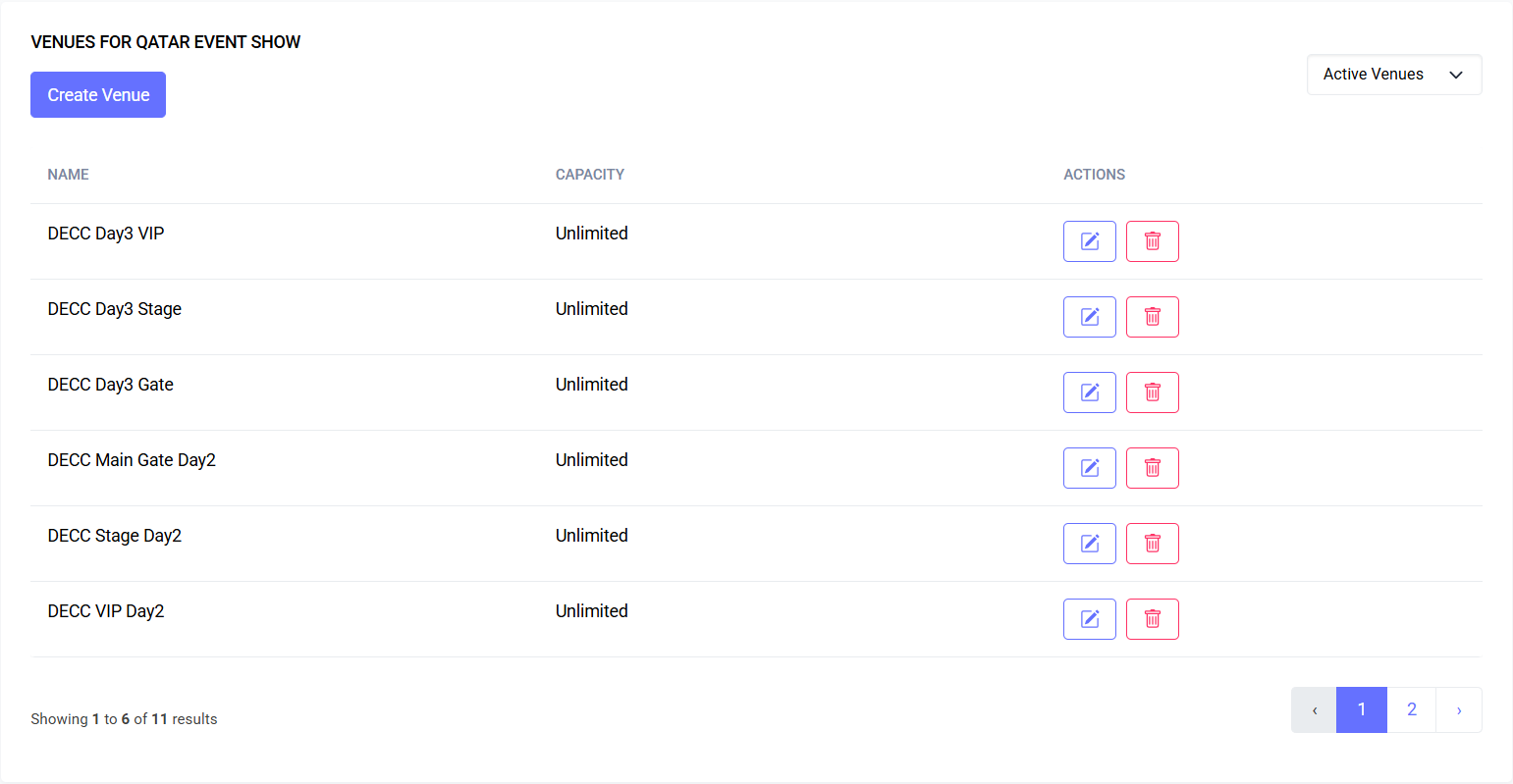
Venues represent halls or spaces scoped to a single event. You can optionally assign a capacity to control attendance for workshops, gates, or other activities. This guide covers creating, editing, deleting (soft delete), restoring, permanently deleting, filtering, and interpreting venue listings.
Interface Preview
Quick Start
- Go to Event > Venues.
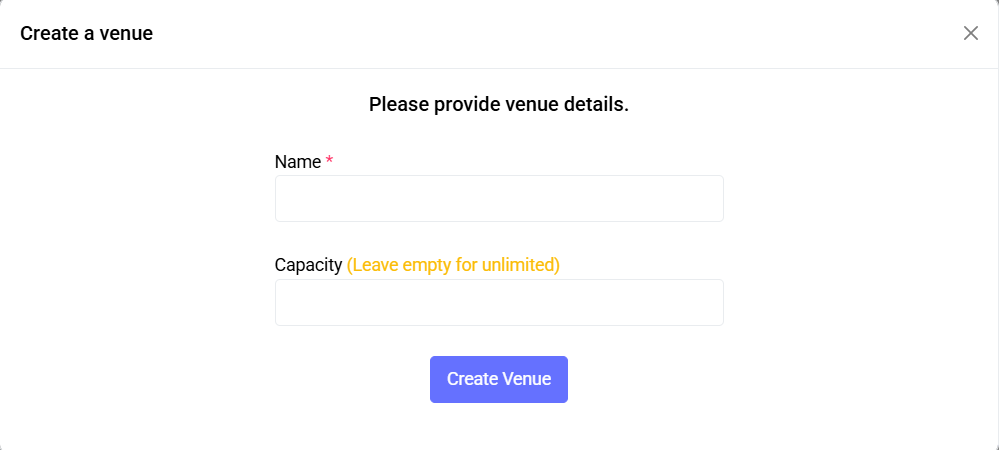
- Click Create Venue and fill in:
- Name (required)
- Capacity (optional; leave blank for Unlimited)
- Save. Venue appears in the list.
- Use row actions to Edit, Delete (to trash), Restore, or Permanently Delete (only when trashed).
Navigation
- Listing: Event > Venues
- Create: Create Venue button (modal)
- Edit: Row action Edit (modal)
- Delete/Restore/Force Delete: Row actions per venue
- Filter: Top-right dropdown (Active, Deleted, All Venues)
Tip: Filter selection is preserved during pagination.
Common Tasks
Create a Venue
- Click Create Venue.
- Enter Name (required).
- Capacity: leave blank for Unlimited or enter a number.
- Save.
Edit a Venue
- Click Edit on the venue row.
- Update Name and/or Capacity.
- Click Update Venue.
Delete a Venue (Soft Delete)
- Click Delete on an active venue.
- Confirm in the dialog. The venue shows a Deleted badge and greyed row in the Deleted filter.
Restore a Venue
- Switch filter to Deleted Venues.
- Click Restore on the venue and confirm.
Permanently Delete a Venue
- Only available for venues already deleted.
- Click Permanently Delete and confirm. Irreversible.
Filter the List
- Use the dropdown: Active Venues, Deleted Venues, All Venues
- Deleted rows appear greyed with a Deleted badge.
Table Overview
- Columns: Name, Capacity, Actions
- Capacity: number or “Unlimited” if none set
- Deleted badge: indicates soft-deleted venue
- Actions vary depending on state (active vs deleted) and permissions
Validation Behavior
- Missing Name or invalid Capacity triggers modal reopening with inline error messages.
Permissions
| Action | Permission |
|---|---|
| View Venues list | venue.viewAny |
| Create Venue | venue.create |
| Edit Venue | venue.edit |
| Delete (soft delete) | venue.delete |
| Restore | venue.restore |
| Permanently delete | venue.forceDelete |
If buttons are missing, check your account for the corresponding permissions.
Data Model (Conceptual)
- Table:
venues - Fields:
id, event_id, name, capacity, deleted_at - Behavior:
- Event-scoped
- Capacity optional; null/empty = Unlimited
- Soft delete sets
deleted_at; Restore clears it; Permanently delete removes the record
Best Practices
- Use clear names matching signage (e.g., “Hall A”)
- Set realistic capacities if operationally enforced; leave blank for Unlimited otherwise
- Prefer soft delete to keep history; permanently delete only when sure it’s safe
Troubleshooting
| Issue | Likely Cause | Fix |
|---|---|---|
| Create/Update fails and modal closes | Validation errors | Modal reopens with inline errors; correct and resubmit |
| Create/Edit/Delete buttons missing | Missing permissions | Ask admin to grant venue.* permissions |
| Deleted venue still visible | Filter set to All or Deleted | Switch filter to Active Venues |
| Permanently delete unavailable | Venue not trashed | Delete first, then Permanently Delete |
FAQs
- What does “Unlimited” capacity mean?
Capacity wasn’t set; system treats it as no limit. - Can I change capacity later?
Yes; edit the venue row. - Does deleting a venue remove it immediately?
Soft delete hides it from active lists. If referenced elsewhere, consider restoring or replacing before permanently deleting.
Last updated: 2025-10-09